-
Flutter - jsonData 방식으로 API(http.get)말고 데이터 뽑아오는 법Flutter 2022. 7. 27. 16:03

Flutter 원래 대로 라면
void nickname(String name) async {
  http.Response response = await http.get(
    Uri.parse('http://~~~~~~~~~~~~~~~~~~~~~~~~~~~~~~~~'),
  );
  if(response.statusCode == 200) {
    var rr = jsonDecode(utf8.decode(response.bodyBytes));
    print(rr);
    print(rr['result']);
  }
}
이런식으로 출력을 해야지만 데이터 를 뽑아 올수 있다. 하지만 API 를 안쓰고 하려면
List jsonData = [
    {
      "id": "0001",
      "type": "donut",
      "name": "Cake",
      "ppu": 0.55,
      "batters": {
        "batter":
        [
          { "id": "1001", "type": "Regular" },
          { "id": "1002", "type": "Chocolate" },
          { "id": "1003", "type": "Blueberry" }, //////// 뽑아주세요
          { "id": "1004", "type": "Devil's Food" }
        ]
      },
      "topping": [
        { "id": "5001", "type": "None" },
        { "id": "5002", "type": "Glazed" },
        { "id": "5005", "type": "Sugar" }, //////// 뽑아주세요
        { "id": "5007", "type": "Powdered Sugar" },
        { "id": "5006", "type": "Chocolate with Sprinkles" },
        { "id": "5003", "type": "Chocolate" },
        { "id": "5004", "type": "Maple" }
      ]
    },  // 0
    {
      "id": "0002",
      "type": "donut",
      "name": "Raised",
      "ppu": 0.55,
      "batters":
      {
        "batter":
        [
          { "id": "1001", "type": "Regular" }
        ]
      },
      "topping":
      [
        { "id": "5001", "type": "None" },
        { "id": "5002", "type": "Glazed" },
        { "id": "5005", "type": "Sugar" },
        { "id": "5003", "type": "Chocolate" },
        { "id": "5004", "type": "Maple" } //////// 뽑아주세요
      ]
    }, // 1
    {
      "id": "0003",
      "type": "donut",
      "name": "Old Fashioned",
      "ppu": 0.55,  // 이거
      "batters":
      {
        "batter":
        [
          { "id": "1001", "type": "Regular" },
          { "id": "1002", "type": "Chocolate" } //////// 뽑아주세요
        ]
      },
      "topping":
      [
        { "id": "5001", "type": "None" },
        { "id": "5002", "type": "Glazed" },
        { "id": "5003", "type": "Chocolate" },
        { "id": "5004", "type": "Maple" }
      ]
    } // 2
  ];


// 버튼 정중앙


  @override
  Widget build(BuildContext context) {
    return MaterialApp(
      home: SafeArea(
        child: Scaffold(
          body: Center(
            child: (
                OutlinedButton(
                  onPressed: () {
                    print(jsonData[0]["batters"]['batter'][2]['id']);
                    print(jsonData[0]["batters"]['batter'][2]['type']);
                    print(jsonData[0]["topping"][2]['id']);
                    print(jsonData[0]["topping"][2]['type']);
                    print(jsonData[1]["topping"][4]['id']);
                    print(jsonData[1]["topping"][4]['type']);
                    print(jsonData[2]['ppu']);
                    print(jsonData[2]["batters"]['batter'][1]['id']);
                    print(jsonData[2]["batters"]['batter'][1]['type']);
                  },
                  child: Text('button'),
                )
            )
          ),
        ),
      ),
    );
  }
}
이런 식으로 해주면 된다. 디바이스에서 버튼을 클릭 했을때
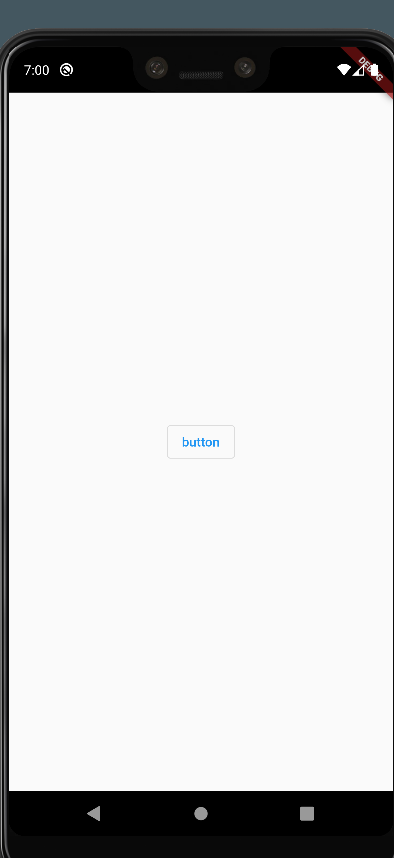
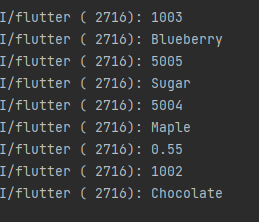
이런식으로 출력이 된다.
'Flutter' 카테고리의 다른 글
Flutter - GetX 상태관리 (0) 2023.03.06 Flutter - 홀,짝,배수 (0) 2022.08.02 Flutter - Random(함수) (0) 2022.08.02 Flutter 에서 firebase 를 사용 하는 최초의 메서드 (0) 2022.07.14